> ## Documentation Index
> Fetch the complete documentation index at: https://docs.stablepayfi.ai/llms.txt
> Use this file to discover all available pages before exploring further.

# Shoplazza

## **1. 在 StablePay 管理您的 Shoplazza 店铺**

**前置准备**：请联系 StablePay 服务人员为您开通商户账号，账号密码会发送至您的邮箱。

**步骤**

1. 登录 [**StablePay 商户后台**](https://merchant.stablepay.co/#/auth/login)
2. 进入【店铺管理】页面，点击 **\[创建店铺]**，渠道类型选择 **Shoplazza**，提交后等待 StablePay 审核
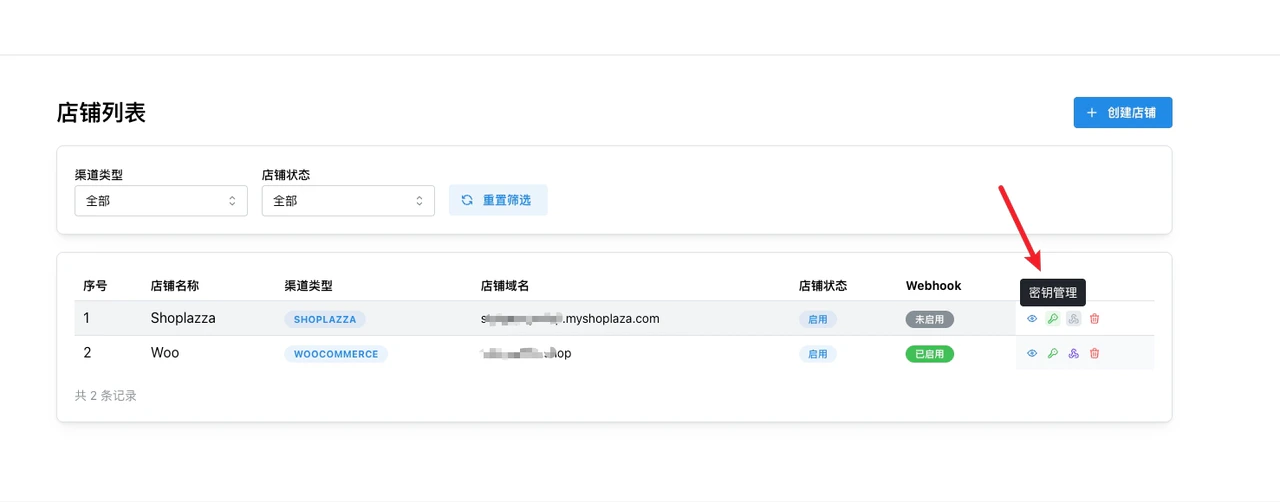
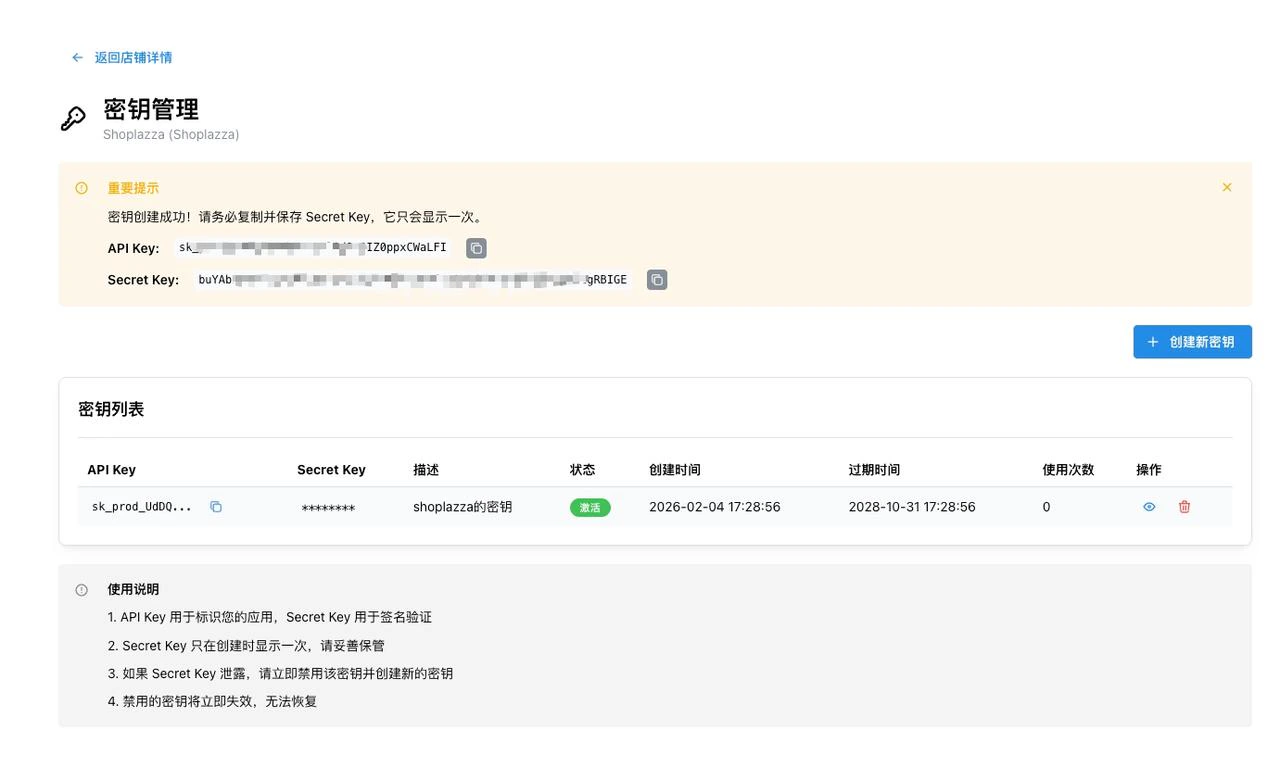
3. 审核通过后，您可以通过店铺列表操作，创建并获得密钥 **API Key**、**Secret Key**
   <Frame>
     <img src="https://mintcdn.com/stablepay-a1f5fa99/Fks_RpQcbXNA6Py_/images/shoplazza/shoplazza1.png?fit=max&auto=format&n=Fks_RpQcbXNA6Py_&q=85&s=49c7d1a3a7b2f662e850a0d3766a9a78" alt="Shoplazza1" width="1280" height="502" data-path="images/shoplazza/shoplazza1.png" />
   </Frame>

<Frame>
  <img src="https://mintcdn.com/stablepay-a1f5fa99/Fks_RpQcbXNA6Py_/images/shoplazza/shoplazza2.jpeg?fit=max&auto=format&n=Fks_RpQcbXNA6Py_&q=85&s=5f510c8b4a82a39ac4195075cb1b2297" alt="Shoplazza2" width="1280" height="780" data-path="images/shoplazza/shoplazza2.jpeg" />
</Frame>

## **2. Shoplazza 后台安装 StablePay 应用**

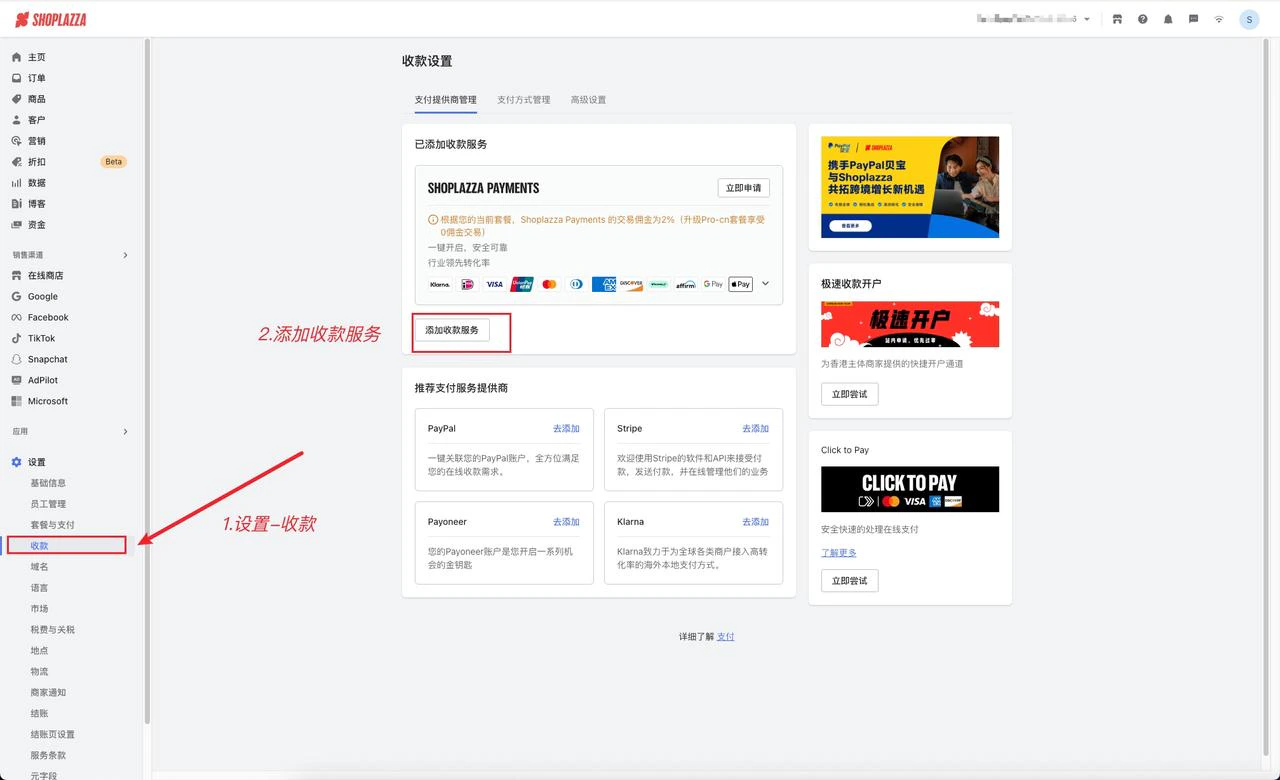
### **步骤 2.1：登录 Shoplazza 后台【设置-收款】**

<Frame>
  <img src="https://mintcdn.com/stablepay-a1f5fa99/Fks_RpQcbXNA6Py_/images/shoplazza/shoplazza3.jpeg?fit=max&auto=format&n=Fks_RpQcbXNA6Py_&q=85&s=81f67566e509ebeee7b769d9aeb890fb" alt="Shoplazza3" width="1280" height="780" data-path="images/shoplazza/shoplazza3.jpeg" />
</Frame>

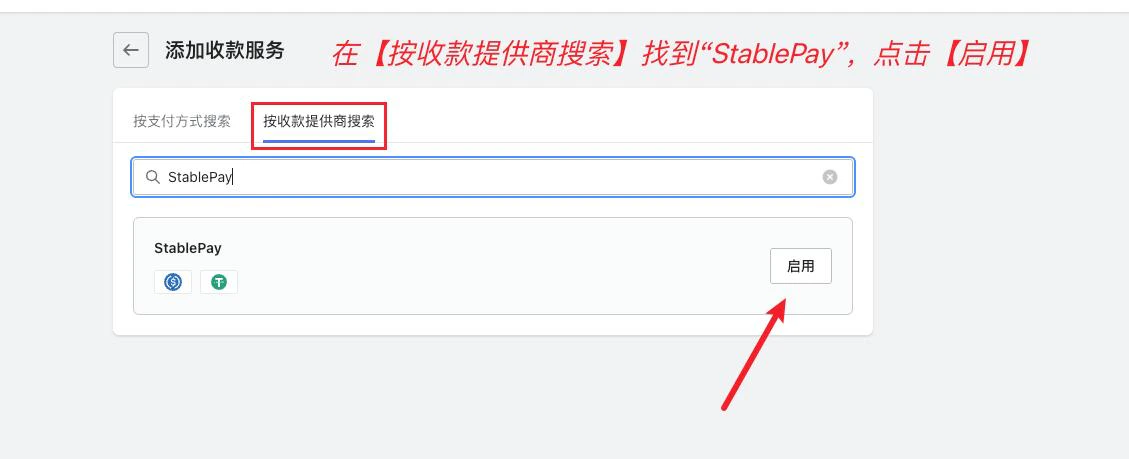
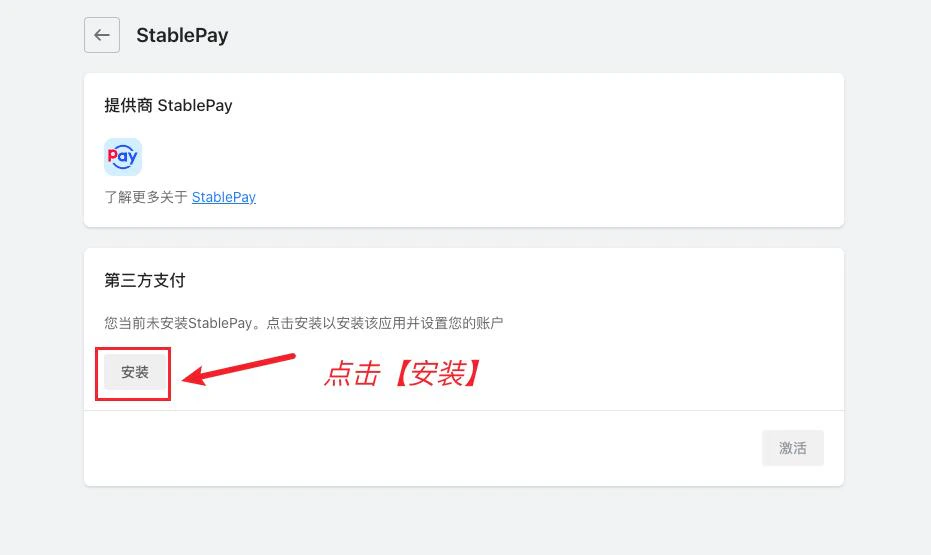
### **步骤 2.2：安装 StablePay 收款服务**

<Frame>
  <img src="https://mintcdn.com/stablepay-a1f5fa99/Fks_RpQcbXNA6Py_/images/shoplazza/shoplazza4.jpeg?fit=max&auto=format&n=Fks_RpQcbXNA6Py_&q=85&s=546349b0514c34856ef886b63d937edc" alt="Shoplazza4" width="1129" height="459" data-path="images/shoplazza/shoplazza4.jpeg" />
</Frame>

<Frame>
  <img src="https://mintcdn.com/stablepay-a1f5fa99/Fks_RpQcbXNA6Py_/images/shoplazza/shoplazza5.jpeg?fit=max&auto=format&n=Fks_RpQcbXNA6Py_&q=85&s=07b2c71c6c5e46f6711cba383fd45b01" alt="Shoplazza5" width="931" height="555" data-path="images/shoplazza/shoplazza5.jpeg" />
</Frame>

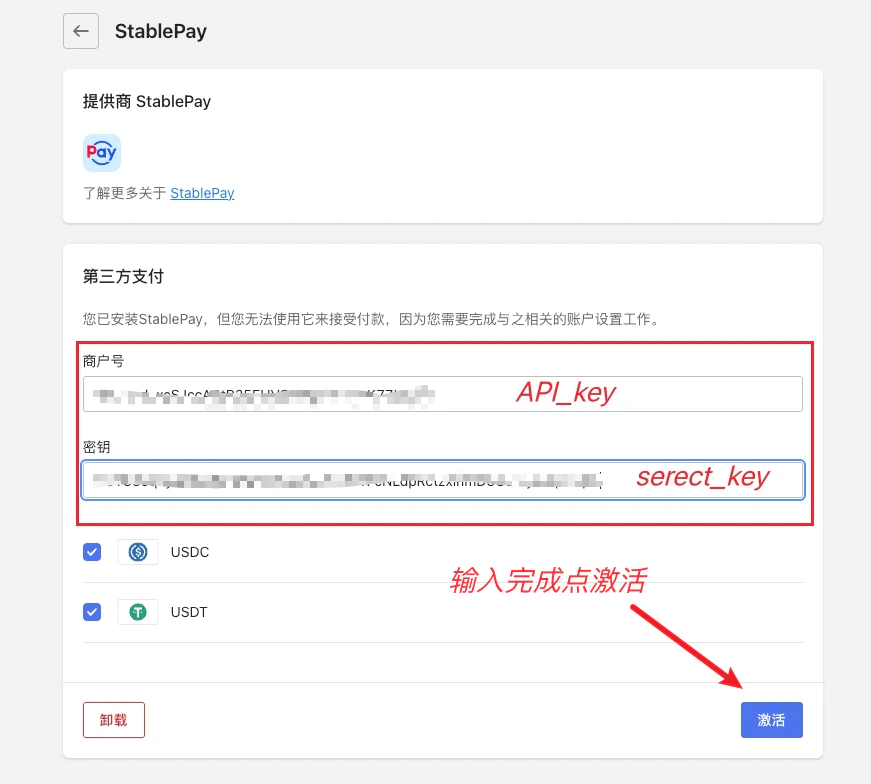
### **步骤 2.3：输入 API Key、Secret Key 并激活**

<Frame>
  <img src="https://mintcdn.com/stablepay-a1f5fa99/Fks_RpQcbXNA6Py_/images/shoplazza/shoplazza6.png?fit=max&auto=format&n=Fks_RpQcbXNA6Py_&q=85&s=84598f9ad661d24cda75dd3ac84d5957" alt="Shoplazza6" width="871" height="784" data-path="images/shoplazza/shoplazza6.png" />
</Frame>

<Frame>
  <img src="https://mintcdn.com/stablepay-a1f5fa99/Fks_RpQcbXNA6Py_/images/shoplazza/shoplazza7.jpeg?fit=max&auto=format&n=Fks_RpQcbXNA6Py_&q=85&s=c1fc064082e0ea8edf7596a0de327aea" alt="Shoplazza7" width="1149" height="1075" data-path="images/shoplazza/shoplazza7.jpeg" />
</Frame>

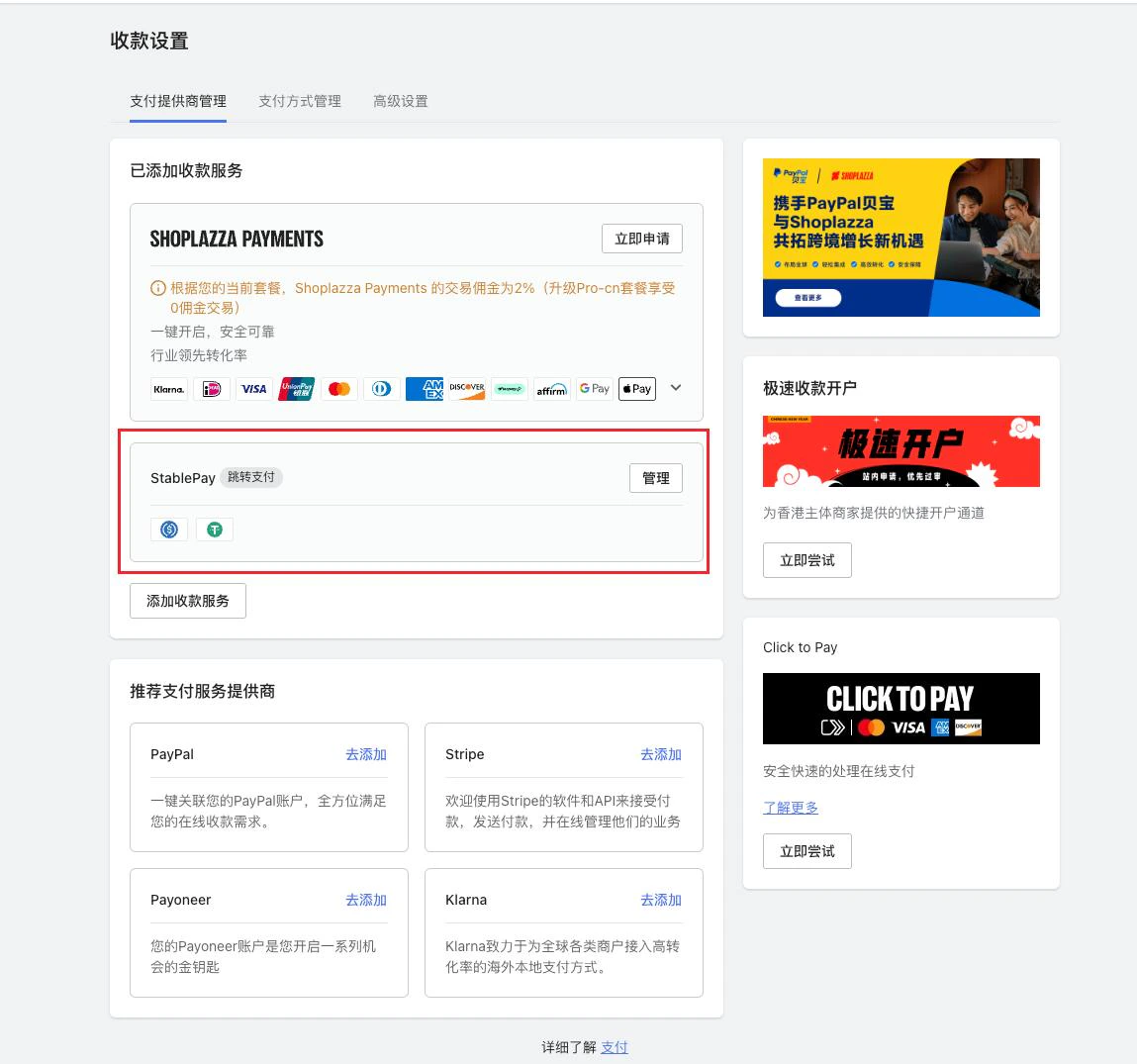
## **3. 安装完成，开始使用 StablePay 收款**

恭喜！您已成功完成 StablePay 与 Shoplazza 的集成，现在可以开始接收稳定币支付了。

<Frame>
  <img src="https://mintcdn.com/stablepay-a1f5fa99/Fks_RpQcbXNA6Py_/images/shoplazza/shoplazza8.jpeg?fit=max&auto=format&n=Fks_RpQcbXNA6Py_&q=85&s=25e09ec13b93faeb97fe75c27d4e7817" alt="Shoplazza8" width="1176" height="1058" data-path="images/shoplazza/shoplazza8.jpeg" />
</Frame>